Monday, July 20, 2026

Your First MCP Server in .NET — From Zero to Hello Tool


Hello Sitecorian Community! 👋

Before building anything Sitecore-specific, I needed to understand MCP from the ground up. Jumping straight to a Sitecore integration without that foundation would mean debugging two things at once — the Sitecore layer and the MCP layer. That is a reliable recipe for confusion.

So step one was this: build the smallest possible working MCP server in .NET, connect it to GitHub Copilot, and see a single tool call succeed. That mental model turned out to be everything that followed.

The guide I followed was Microsoft’s official quickstart:
📘 Create a minimal MCP server using C# — Microsoft Learn

Understanding the project structure first

Before diving into the steps, it helps to understand what a .NET MCP server project actually contains. The template generates four key files:

MyFirstMcpServer — scaffolded projectProgram.csDefines the app as an MCP serverSets transport type (stdio / http)RandomNumberTools.csSample tool — returns a randomnumber between min / max valuesserver.jsonDefines how and where the serveris published (NuGet)[ServerName].httpHTTP transport only — defaulthost address for remote server
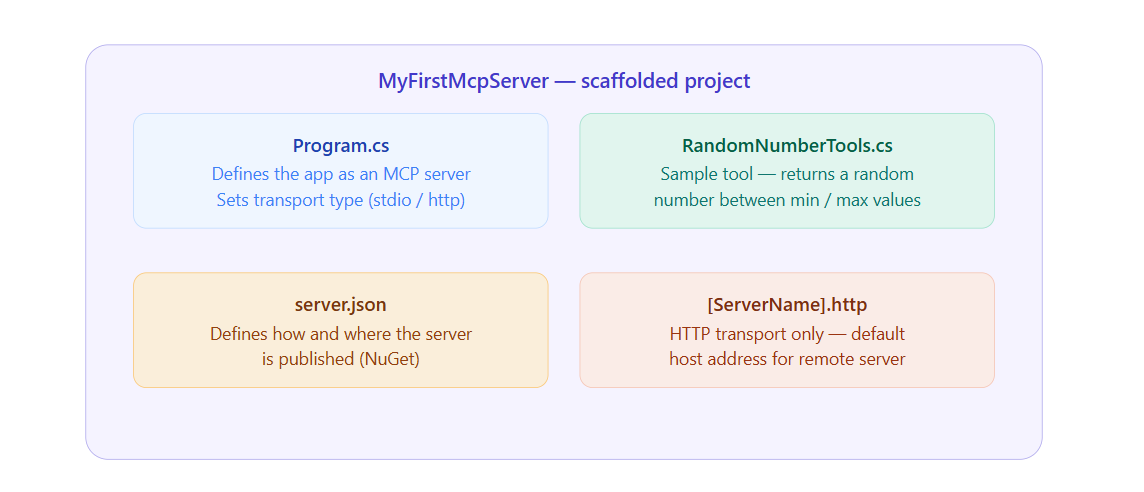
The four files generated by the MCP Server App template. Program.cs and the tools file are the two you'll spend most time in

Prerequisites

  • .NET 10.0 SDK — required; the MCP project templates won’t install on earlier versions
  • Visual Studio Code
  • C# Dev Kit extension for VSCode (ms-dotnettools.csdevkit)
  • GitHub Copilot extension for VSCode (GitHub.copilot)
  • A NuGet.org account — only if you want to publish; skip for local experiments

Note: The Microsoft.McpServer.ProjectTemplates package is currently in preview. It works well, but always check the official docs for the latest before you start.

Step-by-step setup

Step-by-step setup

  1. Install the MCP Server project templateOpen a terminal and run:
dotnet new install Microsoft.McpServer.ProjectTemplates

This adds the MCP Server Apptemplate to your .NET tooling. You won’t see it in the project list until this step is done. .NET 10.0 SDK or later is required.

2. Create the project in VSCode

Open VSCode and bring up the Command Palette (Ctrl+Shift+P on Windows/Linux, Cmd+Shift+P on Mac). Type .NET: New Project and select it. In the template list that appears, search for

MCP Server App and select it. Choose a location, give your project a name — I used MyFirstMcpServer — and press Enter.

3. Choose your template optionsYou’ll be prompted to configure:

  • Framework: Select .NET 10
  • Transport type: Choose stdio(local process) for your first experiment. It communicates via standard input/output and needs no web hosting setup. 
  • Choose http only if you need a remotely accessible server
  • Native AOT / Self-contained: Leave as defaults for now

4. Read the scaffolded code before changing anything

VSCode opens your new project. Spend five minutes reading through Program.cs and RandomNumberTools.cs before modifying anything. The template gives you a working server with a sample tool already registered. That structure — the attribute decoration, the description, the method signature — is the pattern you will repeat for every tool you build later.

5. Connect Copilot and test a tool call 

Open GitHub Copilot in VSCode and switch it to Agent mode

Click the tool icon at the bottom of the Copilot panel. Your MCP server should appear in the list of available tools. If it doesn’t, restart VSCode and try again. Once it appears, type a prompt that exercises the sample tool. Copilot will ask permission to run it — click Continue. When you see the tool execute and return a result inside the Copilot response, you have done it.

6. Update PackageId if publishing to NuGet (optional)

If you want to publish your server as a NuGet package, update the <PackageId> in your .csproj to something unique:

<PackageId>YourNuGetUsername.SampleMcpServer</PackageId>

Not required for local use.

What the transport types actually mean

stdio transportLocal process, stdin/stdoutIDE / Copilot.exe✓ No web server needed✓ Simplest to get started — Local machine onlyhttp transportRemote web serviceIDE / CopilotHTTP API✓ Shareable across a team✓ Works remotely — Needs hosting setup
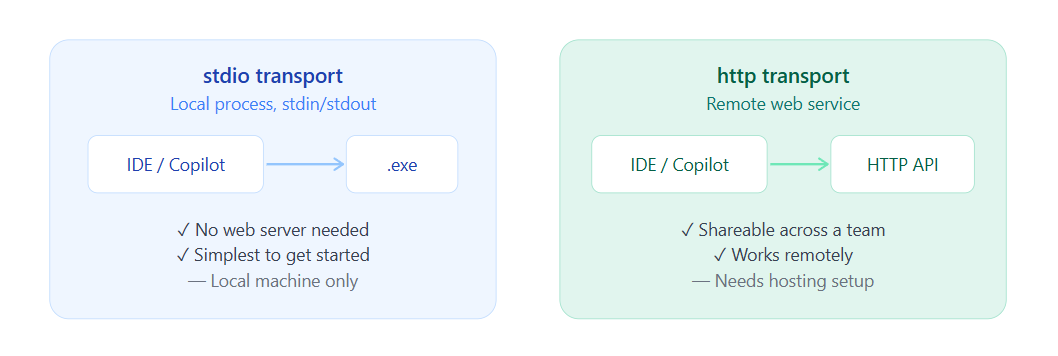
stdio vs http transport. For a first experiment, stdio is the right choice. Switch to http when you need to share the server across a team or access it remotely

Three things this exercise taught me

Tools are the entire model. An MCP server is a collection of tools. Each tool has a name, description, typed inputs, and a return value. The AI model reads those descriptions to decide which tool to call. That is the whole protocol — no magic underneath.

The transport layer is a deployment decision, not a logic decision. stdio vs http changes how clients connect to your server. The tools themselves work identically in both modes. Start with stdio locally; reach for http when you need remote access or team sharing.

Clear descriptions drive reliable routing. In the sample tool, the description is short and precise. I learned the hard way later that vague descriptions cause the AI to call the wrong tool or ignore it entirely. Write descriptions as if you are explaining to a teammate what this function does and when exactly to use it.

Quick tip: after getting the sample tool working, try modifying the RandomNumberTools.cs description to something vague, then ask Copilot the same prompt. You will see immediately how much description quality affects routing reliability.

Till then, Happy Sitecoring! 😊
Tuesday, July 14, 2026

MCP — The Protocol the Sitecore Community Is Talking About

Hello Sitecorian Community! 👋

If you have been following Sitecore community conversations lately, one acronym keeps coming up: MCP. If you have heard the term but not yet found time to dig into it properly — this four-part series is for you.

I have already written a full recap of SUGCON India 2026 in Delhi — the announcements, the sessions, the community energy. I will not repeat all of that here. But one topic from those two days sent me down a rabbit hole I haven’t climbed out of since, and that is what this series documents.

That topic was Model Context Protocol — MCP.

So what actually is MCP?

MCP — Model Context Protocol — is an open protocol that defines how AI models communicate with external tools and data sources in a structured, standardised way. The core shift it represents is this: instead of an AI assistant only being able to chat, it can also act — querying systems, reading live data, triggering operations — through a defined interface.

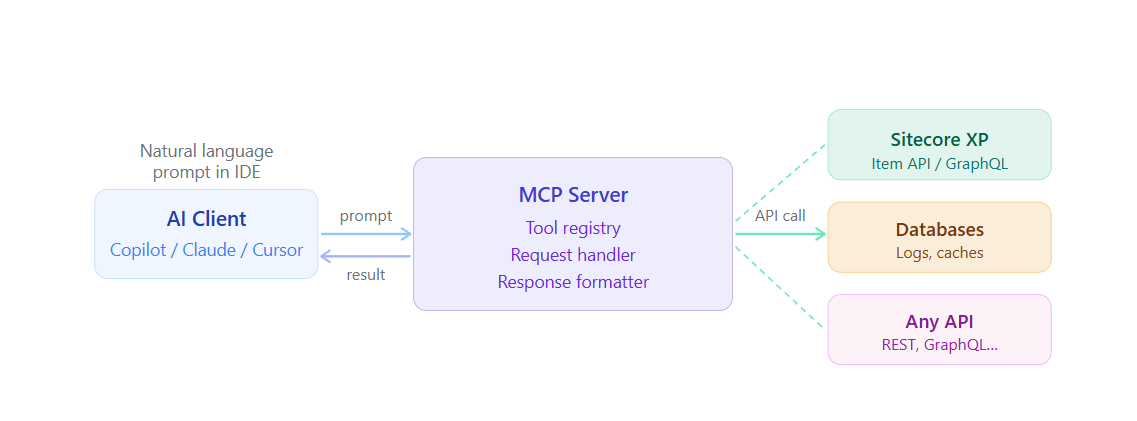
Think of it as a universal adapter between your AI client and any external system. The AI model discovers available tools, reads their descriptions, and calls them in response to a natural language prompt. No hardcoded API client code. No custom integration per tool. One protocol, any system that implements it.

AI ClientCopilot / Claude / CursorpromptMCP ServerTool registryRequest handlerResponse formatterresultAPI callSitecore XPItem API / GraphQLDatabasesLogs, cachesAny APIREST, GraphQL…Natural languageprompt in IDE

 MCP high-level flow: a natural language prompt triggers the MCP client, which routes through the server to the target system and returns structured results

The three things that make MCP relevant for Sitecore developers right now

1. Sitecore’s own direction

At SUGCON India 2026, Sitecore announced Marketer MCP powered by Agent API — the ability to access Sitecore marketing capabilities directly through AI environments like Claude, Cursor, and other LLM-powered tools. This is not a roadmap item. It is Sitecore signalling that MCP is a first-class integration path.

2. The community built it first — for XP

In May 2025 — before the SUGCON announcement — community contributor Anton Tishchenko released an open-source Sitecore MCP server on GitHub: github.com/Antonytm/mcp-sitecore-server. This server connects to Sitecore XP via the Item Service API and GraphQL, and exposes tools for content operations, user and role management, index control, and database and log access. The community did not wait for an official product — it built the bridge itself.

3. The .NET angle for developers like me

Microsoft published an official quickstart for building MCP servers in C# using the C# SDK for MCP. The same language stack we use for Sitecore development is now a first-class way to build AI tooling. That alignment made experimentation feel natural rather than foreign.

What MCP actually enables — in practical terms

Without MCP, an AI assistant in your IDE can only work with the code in front of it. With an MCP server connected to your Sitecore instance, it can also:

  • Browse the content tree and retrieve specific items
  • Check the publishing queue without opening the Sitecore admin
  • Query workflow states across a template type
  • Check which items are currently locked and by whom
  • Read logs and surface errors without leaving your editor

All of this through a natural language prompt. No tab-switching, no manual navigation, no copy-pasting item IDs.

Why this matters more than it sounds: Sitecore developers already know their IDE. The friction of context-switching to a browser, logging into the admin UI, navigating to the right screen — that adds up across a working day. MCP removes that friction without changing the way Sitecore works.

How MCP tools work — a closer look

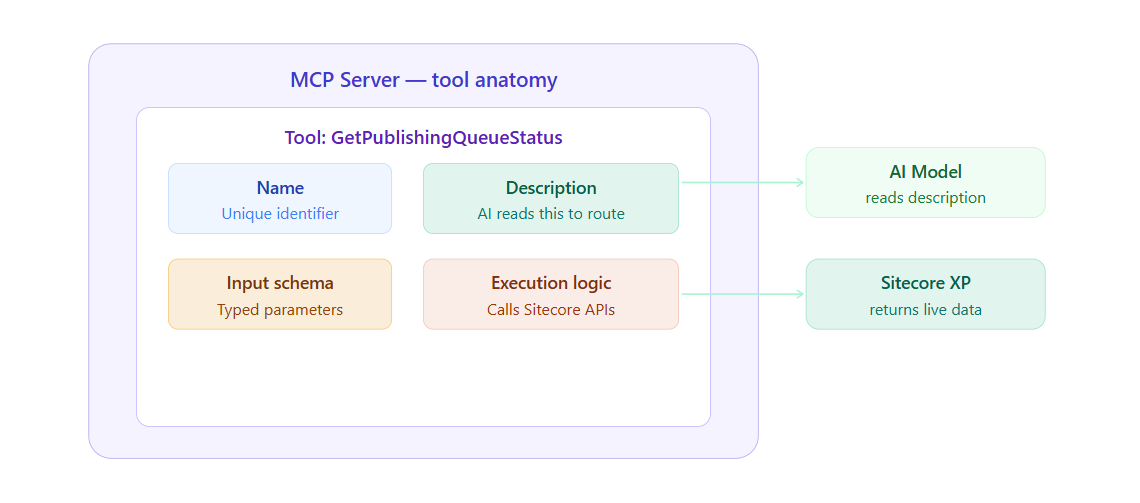
Every MCP server is essentially a collection of tools. Each tool is a named function with a description and typed inputs. The AI model reads those descriptions to decide which tool to call when responding to a prompt.

MCP Server — tool anatomyTool: GetPublishingQueueStatusNameUnique identifierDescriptionAI reads this to routeInput schemaTyped parametersExecution logicCalls Sitecore APIsAI Modelreads descriptionSitecore XPreturns live data

Anatomy of a single MCP tool. The AI reads the description to decide whether to call the tool; the execution logic does the actual work against Sitecore

What is coming in this series

BlogWhat it coversBlog 1 (this one)What MCP is, why it matters for Sitecore developers, and the landscapeBlog 2Building a minimal MCP server in .NET using Microsoft’s official C# quickstartBlog 3Setting up Anton Tishchenko’s community Sitecore MCP server for XP with VSCode and CopilotBlog 4Building a custom .NET MCP server tailored to real Sitecore project reporting needs

If you are a .NET developer working on Sitecore and curious about where AI tooling is heading — stick around. The barrier is genuinely lower than it looks.

Till then, Happy Sitecoring! 😊